




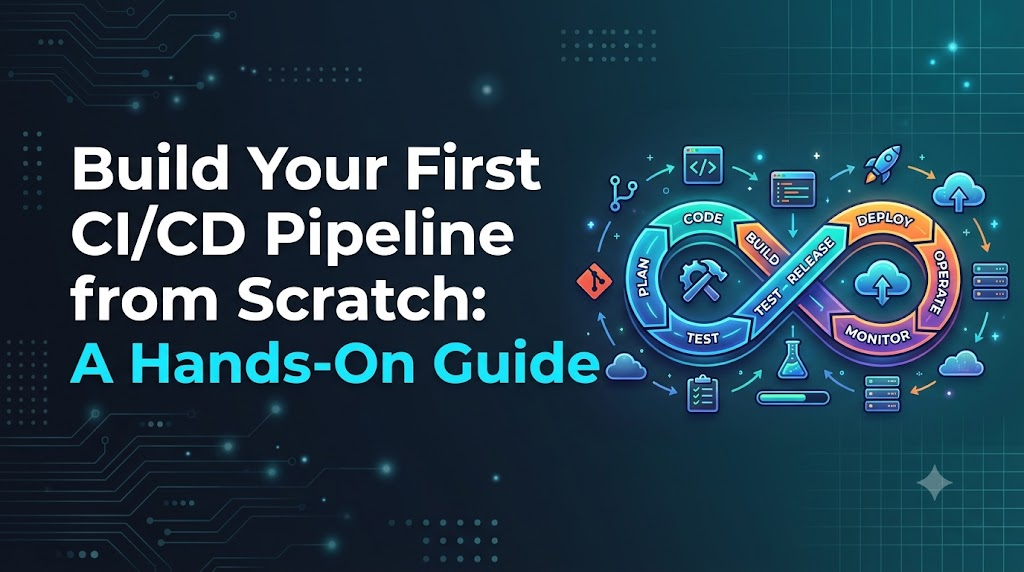
In traditional software development workflows, delivering code to users often involves a fragile checklist of manual steps: pulling the latest code onto a staging server, running tests locally, manually executing build commands, and copying files over SSH or FTP. When these tasks depend entirely on human execution, mistakes happen. Tests are skipped to save time, environment differences cause “it works on my machine” failures, and deployments become high-stress events.
A Continuous Integration and Continuous Delivery (CI/CD) pipeline eliminates this friction. By converting manual build, test, and release steps into automated, reproducible workflows defined directly alongside your application code, your team can catch bugs earlier and ship updates predictably.
This guide walks you through building your very first working CI/CD pipeline from scratch. You will learn the core concepts, configure an automated test and build workflow for a real application, run it, deliberately trigger a failure to see how the pipeline guards code quality, and troubleshoot common issues.
Core Concepts: Understanding the Delivery Pipeline
Before writing workflow files, it helps to understand the terminology and how the pieces fit together.
+-----------------------------------------------------------------------------+
|                               CI/CD WORKFLOW                                |
|                                                                             |
|  [ Code Push ] ---> [ Trigger ] ---> [ CI: Build & Test ] ---> [ CD: Deploy ]|
|   (Git Commit)       (Webhook)        - Fetch code             (Staging /   |
|                                       - Install dependencies    Production) |
|                                       - Run unit tests                      |
|                                       - Build artifacts                     |
+-----------------------------------------------------------------------------+
Continuous Integration (CI)
Continuous Integration is the practice of frequently merging code changes into a central repository, followed by automated steps that build the project and run automated tests. The goal is simple: detect integration errors as early as possible. If a change breaks existing functionality or fails unit tests, the pipeline fails immediately, alerting the developer before the code reaches shared branches.
Continuous Delivery vs. Continuous Deployment (CD)
While both share the “CD” acronym, they describe different levels of deployment automation:
- Continuous Delivery: Every code change that passes the automated build and test stages is automatically packaged and prepared for release. Deploying that build to production, however, requires a manual human decision or approval gate.
- Continuous Deployment: Every code change that passes all validation stages is deployed directly to production automatically, without manual intervention.
For beginners and most enterprise teams, Continuous Delivery is the standard approach because it combines automated verification with intentional release timing.
Key Pipeline Components
- Source Control (Version Control): A system such as Git that tracks code history and coordinates work among team members.
- Triggers: The specific events that initiate a pipeline run (for example, pushing a commit to a branch or opening a pull request).
- Jobs and Steps: A job is an execution unit run on a specific machine. Within each job are sequential steps—individual tasks such as checking out code, installing dependencies, running a linter, or executing a test suite.
- Runners (Agents): The virtual machines or containers (hosted by your CI platform or self-managed) that execute the job instructions.
- Environments: The target destinations for applications, typically divided into development, staging (pre-production), and production.
Project Setup: Choosing the Stack and Platform
To keep this tutorial practical, self-contained, and free of hidden costs or external cloud accounts, we will use:
- Platform: GitHub Actions. It is built into GitHub, requires zero server configuration to get started, provides free workflow minutes for public and private repositories, and uses standard YAML configuration.
- Application: A lightweight Node.js web application with an automated unit test suite using the built-in Node test runner (Node 18+). This eliminates complex third-party testing dependencies while demonstrating a realistic test-and-build workflow.
Prerequisites
To follow along, make sure you have:
- A free GitHub account.
- Git installed locally.
- Node.js (version 18 or higher) installed on your local computer to verify files before pushing.
Step-by-Step Implementation
Step 1: Create the Application Files Locally
Create a new directory on your machine and navigate into it:
Bash
mkdir first-cicd-pipeline
cd first-cicd-pipeline
Initialize a standard package.json file:
JSON
{
  "name": "first-cicd-pipeline",
  "version": "1.0.0",
  "description": "A minimal project to demonstrate CI/CD",
  "main": "src/app.js",
  "scripts": {
    "start": "node src/app.js",
    "test": "node --test tests/"
  }
}
Now create a src directory and add a basic math utility that powers our application, src/app.js:
JavaScript
// src/app.js
function add(a, b) {
  return a + b;
}

function subtract(a, b) {
  return a - b;
}

module.exports = { add, subtract };
Create a tests directory and add an automated test file, tests/app.test.js:
JavaScript
// tests/app.test.js
const test = require('node:test');
const assert = require('node:assert');
const { add, subtract } = require('../src/app');

test('adds numbers correctly', () => {
  assert.strictEqual(add(2, 3), 5);
  assert.strictEqual(add(-1, 1), 0);
});

test('subtracts numbers correctly', () => {
  assert.strictEqual(subtract(5, 2), 3);
  assert.strictEqual(subtract(0, 4), -4);
});
Verify that the application and tests run locally:
Bash
npm test
You should see output indicating that two tests passed.
Step 2: Initialize Git and Create the Remote Repository
Create a .gitignore file to ensure local build artifacts and system files are excluded from version control:
node_modules/
.DS_Store
Initialize your Git repository, commit the files, and set the default branch to main:
Bash
git init
git add .
git commit -m "feat: initial commit with application code and tests"
git branch -M main
Go to GitHub, create a new repository named first-cicd-pipeline (do not initialize it with a README or license, since you already have local files), and link your local repository to GitHub:
Bash
git remote add origin https://github.com/<YOUR-USERNAME>/first-cicd-pipeline.git
git push -u origin main
Step 3: Define the CI/CD Pipeline Workflow
In GitHub Actions, workflows are defined using YAML files located in the .github/workflows/ directory of your repository.
Create that directory structure now:
Bash
mkdir -p .github/workflows
Create a new file named .github/workflows/ci.yml and paste the following configuration:
YAML
name: Build and Test Pipeline

on:
  push:
    branches: [ "main" ]
  pull_request:
    branches: [ "main" ]

permissions:
  contents: read

jobs:
  validate:
    name: Run Unit Tests and Validate Build
    runs-on: ubuntu-latest

    steps:
      - name: Check out repository code
        uses: actions/checkout@v4

      - name: Set up Node.js runtime
        uses: actions/setup-node@v4
        with:
          node-version: 20
          cache: 'npm'

      - name: Install dependencies
        run: npm ci

      - name: Execute automated tests
        run: npm test

      - name: Verify build artifacts
        run: |
          echo "All automated tests passed successfully."
          echo "Package validation complete and ready for deployment."
Understanding the Pipeline Configuration
Let’s break down each block of .github/workflows/ci.yml to understand how the platform processes it:
1. Triggers (on:)
YAML
on:
  push:
    branches: [ "main" ]
  pull_request:
    branches: [ "main" ]
This instructs GitHub to run the pipeline whenever a commit is pushed to main, or whenever someone opens a pull request targeting main. This guarantees that code is tested before it is merged and re-tested immediately after merging.
2. Permissions (permissions:)
YAML
permissions:
  contents: read
Following the principle of least privilege, this restricts the workflow’s default GitHub token (GITHUB_TOKEN) to read-only access. It prevents a compromised dependency or step from modifying your repository without explicit authorization.
3. Runner Environment (runs-on:)
YAML
runs-on: ubuntu-latest
This tells GitHub to provision a clean, isolated Ubuntu Linux virtual machine to execute the job. Every run starts from an identical clean slate.
4. Steps (steps:)
actions/checkout@v4: By default, runners start empty without your code. This official action clones your repository into the runner’s workspace.actions/setup-node@v4: Installs the specified Node.js version (20) on the runner and configures dependency caching for faster execution.npm ci: Short for “Clean Install”. Unlikenpm install(which may updatepackage-lock.json),npm cistrictly installs exact dependency versions from the lockfile, ensuring reproducible builds across development and CI environments.npm test: Executes the test suite. If any test throws an unhandled error or an assertion fails, the command exits with a non-zero exit code (1), which automatically halts the pipeline and marks the job as failed.
Running the Pipeline and Inspecting the Output
Triggering the Workflow
Commit the workflow file and push it to GitHub:
Bash
git add .github/workflows/ci.yml
git commit -m "ci: add GitHub Actions validation workflow"
git push origin main
Viewing Execution Logs
- Navigate to your repository on GitHub.
- Click the Actions tab at the top.
- You will see a workflow run titled “ci: add GitHub Actions validation workflow”.
- Click on the run, then click on the Run Unit Tests and Validate Build job in the sidebar.
GitHub will display the real-time execution log. You can expand each step to see:
- The source code being cloned.
- The Node environment being initialized.
- The test runner executing your assertion checks and passing with exit code
0.
✔ adds numbers correctly (1.12ms)
✔ subtracts numbers correctly (0.24ms)
ℹ tests 2
ℹ suites 0
ℹ pass 2
ℹ fail 0
A green checkmark indicates that the entire workflow ran to completion without errors.
Failure Handling and Troubleshooting
A CI pipeline is only as good as its ability to catch broken code. To see your pipeline do its real job, let’s deliberately break a test.
Step 1: Introduce a Bug
Open src/app.js and modify the add function so it produces an incorrect result:
JavaScript
// src/app.js
function add(a, b) {
  return a + b + 1; // Intentional bug
}

function subtract(a, b) {
  return a - b;
}

module.exports = { add, subtract };
Commit and push this change:
Bash
git add src/app.js
git commit -m "fix: adjust addition logic"
git push origin main
Step 2: Inspect the Failure
Return to the Actions tab on GitHub. You will see a new run marked with a red X.
Click on the failed job and expand the Execute automated tests step. You will see a detailed error report:
✖ adds numbers correctly (1.85ms)
  AssertionError [ERR_ASSERTION]: Expected values to be strictly equal:
  6 !== 5

  location: tests/app.test.js:6:10
Notice that the subsequent step—Verify build artifacts—was never run. When a step fails, the CI runner halts execution immediately. This guarantees that broken code cannot proceed downstream into packaging or deployment.
Step 3: Revert and Recover
Fix the bug in src/app.js, commit, and push again. The pipeline will trigger automatically and restore the green checkmark.
Common Beginner Pipeline Issues
| Problem | Root Cause | Solution |
| Workflow does not trigger | File placed in wrong path (e.g., .github/workflow/ instead of .github/workflows/). | Verify that the directory path is strictly .github/workflows/ and the file ends in .yml or .yaml. |
npm ci fails immediately | Missing package-lock.json file in the repository. | Run npm install locally to generate package-lock.json, commit it, and push it to the repo. |
Command not found (e.g., node) | The runtime setup action was skipped. | Ensure actions/setup-node (or equivalent for your language) runs before executing commands for that runtime. |
| Tests pass locally but fail in CI | Hardcoded file paths, missing environment variables, or case-sensitive OS file systems (Linux vs. macOS/Windows). | Ensure import paths match exact casing on disk (e.g., ./src/App vs ./src/app) and check local vs. CI Node versions. |
| Permission denied errors | Workflow permissions are too strict for tasks requiring write access (e.g., publishing releases). | Adjust the specific permission under permissions: (e.g., packages: write) rather than granting blanket admin rights. |
Adding a Safe Staging Deployment Step
Once your continuous integration workflow validates builds reliably, you can attach a continuous delivery step.
For a first pipeline, deploying directly to bare metal or high-cost production infrastructure is unnecessary and introduces security risks. Instead, standard industry practice is to deploy to an isolated staging or preview environment.
Here is how you can expand your workflow to include a deployment job that runs only if the validation job passes:
YAML
name: Build, Test, and Stage

on:
  push:
    branches: [ "main" ]

permissions:
  contents: read

jobs:
  validate:
    name: Run Unit Tests
    runs-on: ubuntu-latest
    steps:
      - uses: actions/checkout@v4
      - uses: actions/setup-node@v4
        with:
          node-version: 20
          cache: 'npm'
      - run: npm ci
      - run: npm test

  deploy-staging:
    name: Deploy to Staging Environment
    needs: validate   # Ensures deployment ONLY runs if 'validate' succeeds
    runs-on: ubuntu-latest
    environment:
      name: staging
    steps:
      - name: Deploy application
        run: |
          echo "Authenticating with deployment target..."
          echo "Shipping tested build to staging cluster..."
          echo "Deployment verified."
Key Elements of This Pattern:
needs: validate: Enforces strict execution order. If thevalidatejob fails, GitHub cancelsdeploy-stagingautomatically.environment: staging: Ties the run to a configured environment in GitHub (Settings > Environments). This allows teams to set branch protection rules, require manual approvals before deploying, and isolate environment-specific secrets.- Secrets Management: If your deployment step requires API tokens or SSH keys, never commit them to Git. Store them in GitHub under Settings > Secrets and variables > Actions, and reference them in steps using
secrets.YOUR_SECRET_NAME.
Security and Best Practices for CI/CD
Even in a beginner pipeline, following sound engineering hygiene prevents severe security incidents:
- Pin Action Versions: Use specific major versions (e.g.,
actions/checkout@v4) or full commit SHAs to prevent upstream compromises from affecting your pipeline. - Never Commit Secrets: Pass API tokens, SSH keys, and database passwords exclusively through platform secret managers. Inspect code reviews to verify
.envfiles are not checked in. - Enforce Branch Protections: Configure your repository settings so that the
mainbranch requires pull requests and passing CI checks before merging. - Use
npm ciOvernpm install: Guarantee build reproducibility and avoid unintentional package upgrades in CI. - Minimize Job Permissions: Explicitly specify the minimal permissions needed using the top-level
permissions:block.
Next Steps to Mature Your Pipeline
Once your basic pipeline is running consistently, consider adding these progressive improvements:
- Code Linting and Formatting: Add a step running
eslintorprettier --checkto enforce code style automatically. - Matrix Builds: Run tests across multiple runtime versions (e.g., Node 18, Node 20, and Node 22) simultaneously using GitHub Actions matrix strategies.
- Automated Dependency Scanning: Incorporate tools such as
npm auditor automated vulnerability scanners (like Dependabot or Snyk) to identify vulnerable libraries before shipping. - Containerization: Add a step that builds a Docker image, tests the container, and pushes it to a container registry (such as GitHub Packages or Docker Hub).
Frequently Asked Questions
What do beginners need before building a CI/CD pipeline?
You only need basic familiarity with Git (committing and pushing code), an account on a platform with integrated CI (such as GitHub or GitLab), and an application that has at least one executable test or build script.
Do I need to pay for cloud infrastructure to practice CI/CD?
No. Platforms like GitHub Actions and GitLab CI/CD offer generous free tiers with hosted Linux, macOS, and Windows runners. You can run automated builds, unit tests, and validation steps without entering credit card information or provisioning cloud servers.
Can I build a CI/CD pipeline for a small project?
Yes. In fact, small projects are the best place to start. A simple pipeline with 25 lines of configuration that runs unit tests on every pull request provides immediate value by catching breaking changes early.
What is the difference between hosted runners and self-hosted runners?
A hosted runner is a virtual machine managed, secured, and cleaned up entirely by the CI platform provider. A self-hosted runner is a physical or virtual machine that you provision, configure, and maintain on your own infrastructure. Beginners should always use hosted runners to avoid maintenance overhead.
Conclusion
Building your first CI/CD pipeline does not require complex cloud infrastructure or dozens of external tools; a clean, 25-line workflow file running automated tests on every push gives your project an immediate safety net. By replacing manual build checklists with automated validation, you catch breaking changes early, build confidence in your codebase, and establish a repeatable deployment pattern. Start by automating your test suite on a single branch, observe how the pipeline handles real failures, and incrementally layer in staging deployments, linting, and security scans as your application matures.